
Dogear: a PDF reader for studying, made for Omarchy
Class handouts, workbooks and textbooks mostly arrive as PDFs now, and most PDF readers treat them as something to look at, not something to work in. Dogear does what you’d do to a paper textbook: highlight in several colors, write notes next to what you highlighted, fold the corner of a page, and fill in the blanks on a worksheet. When you’re done, it exports everything to Markdown, for example straight into your Obsidian vault.
dogear.ninepointlabs.com (with a narrated demo video) · v0.1.0 on GitHub
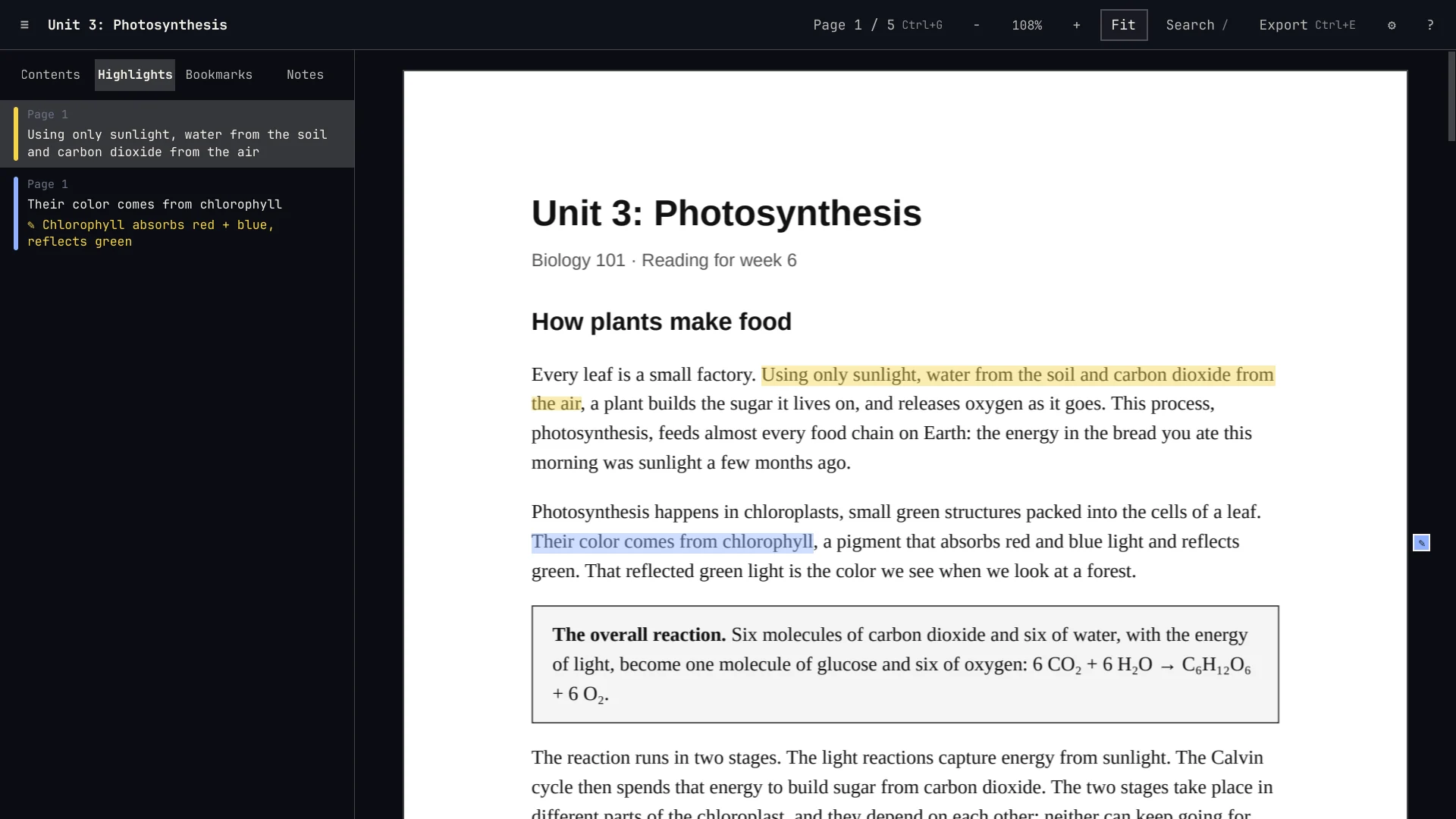
Mark it up like paper
Select text and press 1 through 5 to highlight it in yellow, green, blue, pink or purple, or press a to highlight and write a note in one go. Hover a highlight to read its note; notes also show in the sidebar and as markers in the margin. Press b to bookmark a page (it gets a folded corner, named after its table of contents entry), and keep general notes about the whole document with Ctrl+N.
Dogear remembers the page, scroll position and zoom for every file, so opening a handout again puts you back where you stopped.
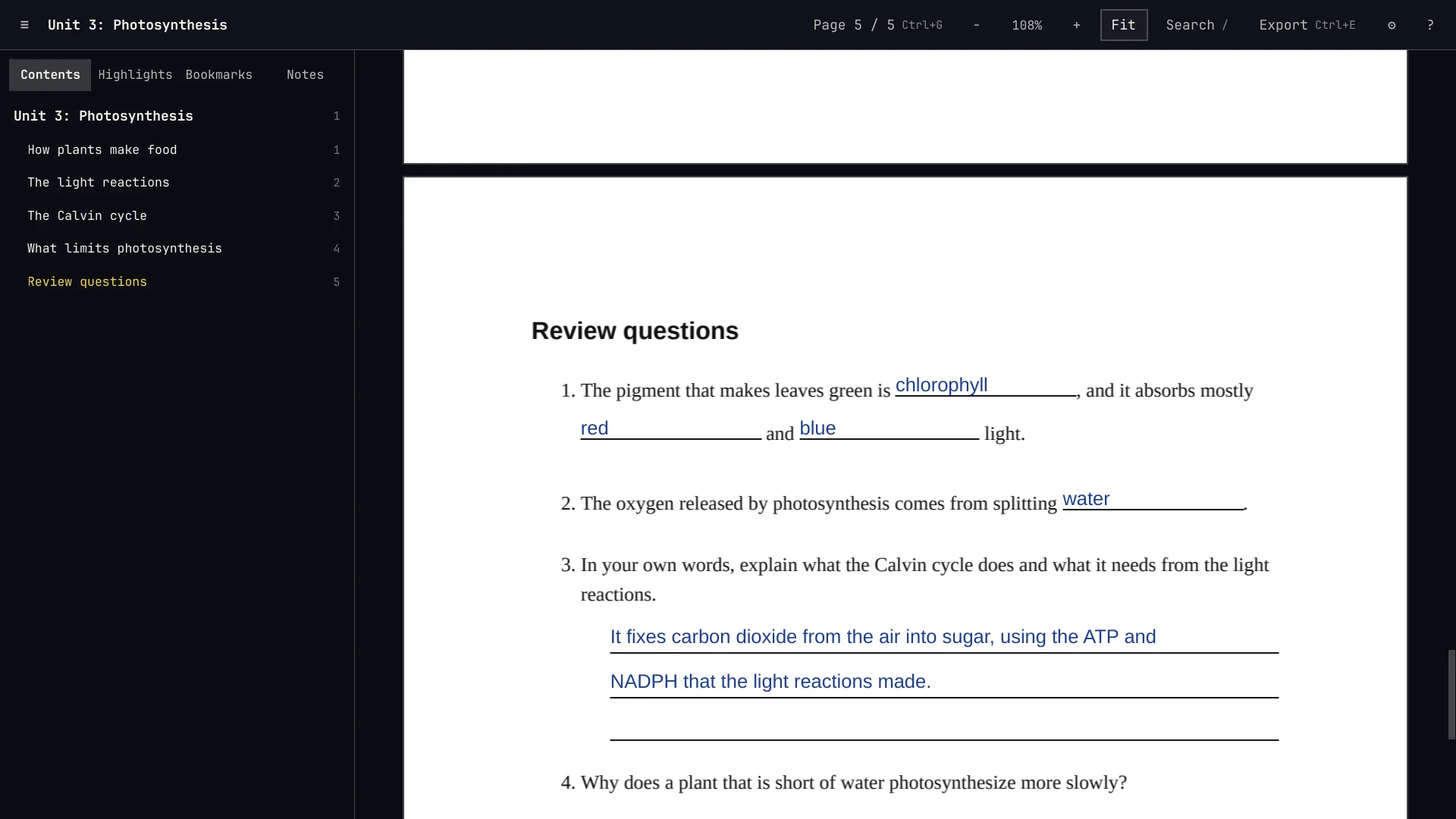
Fill in the blanks
This is what sets Dogear apart. Worksheets leave lines for answers, and in Dogear you just click the line and type. There’s no text box to place: it finds the line in the rendered page (drawn rules, runs of underscores, dotted lines), writes on it in blue ink at the size of the page’s own text, and shrinks a long answer to fit a short blank. Tab jumps to the next blank, so a whole fill-in-the-blank page can be done from the keyboard. Ruled lines under a question become one answer that wraps from line to line.
A library that remembers your marks
With no PDF open, Dogear shows a library of every PDF you’ve opened, with how many highlights, notes, answers and bookmarks each has. Search reaches inside your marks too, so a word you highlighted three weeks ago finds its handout. You can sort, file documents under categories, and give them your own names (“Book 3: Children’s Classes” instead of a 60-character file name) without renaming the file.
Dogear never changes your PDFs. It keeps a copy of every PDF you mark up, so your marks always have their PDF even if the original is moved or deleted. Everything lives in one folder, ~/Documents/Dogear by default, that you can sync between computers with Syncthing, Dropbox or Google Drive. If two computers change the same document before syncing, Dogear merges the conflict copy back in and keeps every mark from both. It also notices a re-download or new edition of a book you’ve marked up and offers to bring your marks over.
Into Obsidian
Ctrl+E writes a Markdown file per PDF: document notes first, then one section per page with highlights as quotes (page and color included), each note under its highlight, bookmarks, and every worksheet answer under its full question, so the export reads without the PDF. Categories come along as Obsidian tags. Point the export folder at your vault in Settings and your study notes land where the rest of your notes live.
Native to Omarchy
Dogear is keyboard first, with Vim-style reading keys (j/k, J/K for pages, / to search) and Ctrl for commands, leaving Super to Hyprland. It follows your Omarchy theme and repaints the moment you run omarchy theme set, and it makes room in narrow tiling windows. No account, no network access and no telemetry.
Install v0.1.0
On Arch and Omarchy, install it with autonomix-cli, which also keeps it updated from GitHub Releases:
Or download dogear-0.1.0-1-any.pkg.tar.zst from the release page and run sudo pacman -U dogear-0.1.0-1-any.pkg.tar.zst. pacman pulls in pyside6 and qt6-webengine (for the Qt PDF library). Dogear then shows up in your app launcher and can open PDFs from the file manager.
MIT licensed. Questions or bugs go to help@ninepointlabs.com or the issue tracker.